![BarTrack Logo footer - Hubspot.png]](https://support.bartrack.com/hs-fs/hubfs/BarTrack%20Huisstijl%20elementen/BarTrack%20Logo%20footer%20-%20Hubspot.png?width=200&height=40&name=BarTrack%20Logo%20footer%20-%20Hubspot.png)
Module and User Group
Module: My Inventory
For whom: Warehouse staff, purchasers, and administrators within BarTrack
Where can I configure this?
You can configure this per inventory location within ‘My Inventory’.
Follow the steps below:
-
Log in to order.bartrack.com.
-
Go to ‘My Inventory’ in the menu.
-
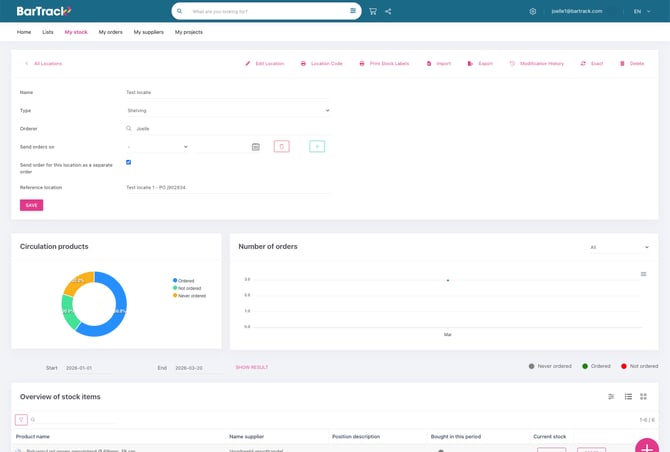
Open the inventory location for which you want to send orders separately.
-
Click ‘Edit location’ at the top of the page.
-
Enable the option ‘Send order for this location as a separate order’.
-
Enter the desired reference under ‘Location reference’.
-
Click ‘Save’.
What happens after this setting?
Once this setting is active, the way orders are sent will change.
Order per inventory location – What does this mean?
Items from this inventory location will automatically be placed in a separate order when the order is sent.
This means:
Items from other locations will not be combined with this location.
The wholesaler will receive a separate order for this inventory location.
Default reference per location – What does this mean?
The reference entered for the inventory location will automatically be added to the order.
Important to know:
The reference is applied when the order is sent.
This applies to both manually added items and automatically generated orders.
Important nuance
Sending orders separately only applies to inventory locations for which this setting has been enabled. Other locations will remain combined in a single order unless this setting is also configured for them.
Not sure about your order?
Check ‘My Orders’ to verify whether the order has indeed been created separately and whether the reference has been applied correctly.
If this is not the case or if you have questions about the processing, please contact BarTrack support.